English (en)
```markdown
Navigation
To open the menu, use the button with the three horizontal lines located at the top left.
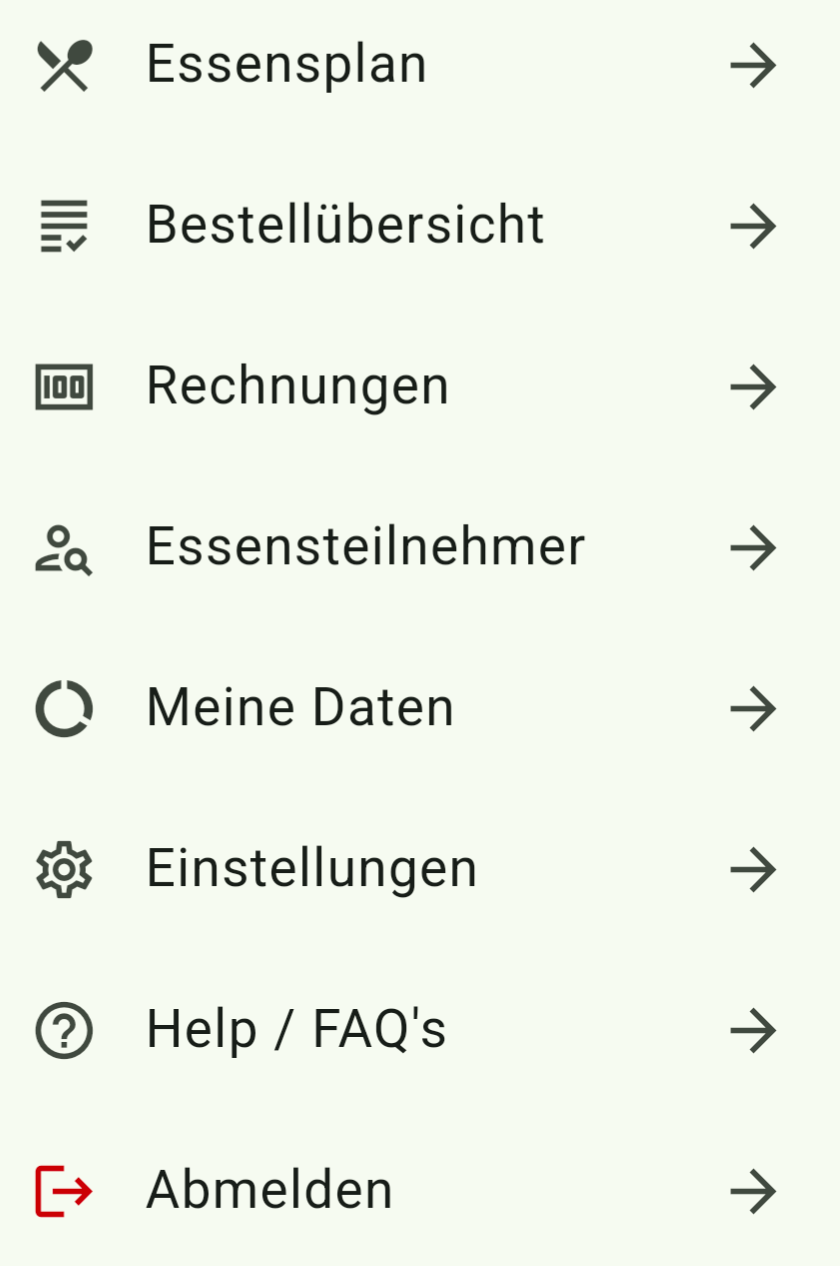
Meal Plan
On the "Meal Plan" page, you can order food.
In the balance system: The current balance of the meal participant is displayed under their name.
To place an order, use the "+" button to increase the number of portions and "–" to decrease it.
Finally, confirm the order by clicking the "Order" button at the bottom right of the screen.
Change Weekday
Tap the button for the desired day to change the weekday.
View Additives and Allergens
Click the "Additives and Allergens" button to view the relevant information in a pop-up window.
Change Week
Use the left or right arrows to navigate to the next or previous week.
Alternatively, you can use the calendar icon at the top right to select a week directly.
Switch Meal Participant
You can switch between different meal participants (registered with the same provider/caterer).
Tap the icon to the right of the current participant's name (or to the left to go back).
Note:
If only one participant is registered, these buttons are disabled.
To view your meal participants with other providers/caterers (if they also use the School Menu Planner), select the respective caterer when logging in.
Log out first.
Order Deadlines
The top right of each meal indicates the latest possible order date and time, as well as the latest cancellation deadline.
Order Overview
Here you can see all orders within a freely selectable time period.
Select the time period via the calendar icon.
If multiple participants are registered, you can switch between them by clicking on the respective name.
At the bottom of the page, the total amount for the selected period and participant is displayed.
Invoices
All invoices issued by the catering provider for the last 18 months can be viewed here.
Click on the name of an invoice to view its details.
Note:
Invoices are only available for 18 months.
Please download your invoices.
Meal Participants
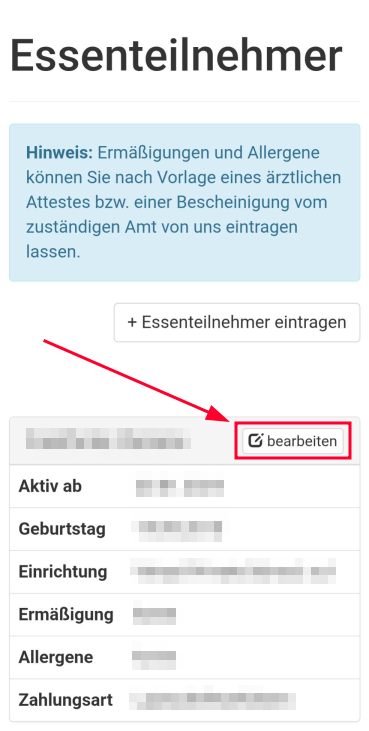
On the "Meal Participants" page, you can view and edit the data of each participant.
You can also adjust the assigned facility, group, or class here.
Click the "Edit" button located to the right of the participant's name.
New participants can be added via the corresponding button.
If a balance system is used, it is also possible to transfer money from the user account to a specific participant's account.
Facility Change (Class or Group Change)
A change of facility, class, or group is not performed automatically in the School Menu Planner.
How to change the facility of a meal participant:
- Click "edit" next to the participant's name.
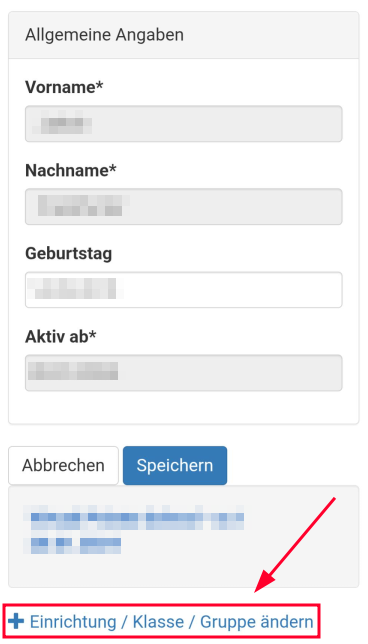
- Scroll to the bottom of the next page and click "Change Facility / Class / Group".
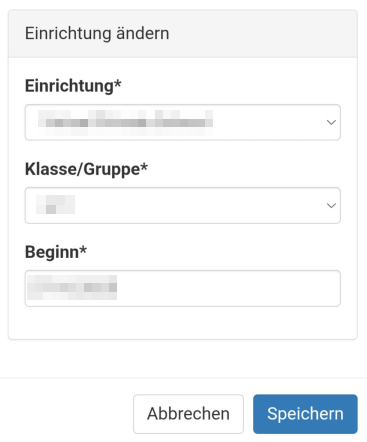
- Enter the new facility, class, or group, as well as the desired start date.
Note:
If you have a recurring order for your participant:
If you change the facility of a participant, the previous recurring order is only valid until the change date.
All orders after the change will be automatically canceled.
You can set up a separate recurring order for the new facility.
Warning:
Please be careful!
You cannot edit the entry after saving.
My Data
On the "My Data" page, you can update or add your stored data by clicking the "Edit" button.
You can also view the "Registration Confirmation".
Settings
On the "Settings" page, you can change the app's language and adjust the design.
Help / FAQ's
Here you will find answers to frequently asked questions about using the app and help on other topics.
The topics range from registration to menu selection to balance management.
Logout
Select "Logout" in the main menu to log out of your user account.